Start here
Quick start
Upload an OM, build a model, check the intake report, make one edit, trace one number, export one workbook.
One pass through the product: OM in, workbook out. Ten minutes if the extraction queue is quiet. You need one offering memorandum as a PDF.
-
Open the Acquisition pipeline. It is the first screen after sign-in (the Deals icon in the left rail). Every deal is a row; the row’s status tells you the one thing it needs next.
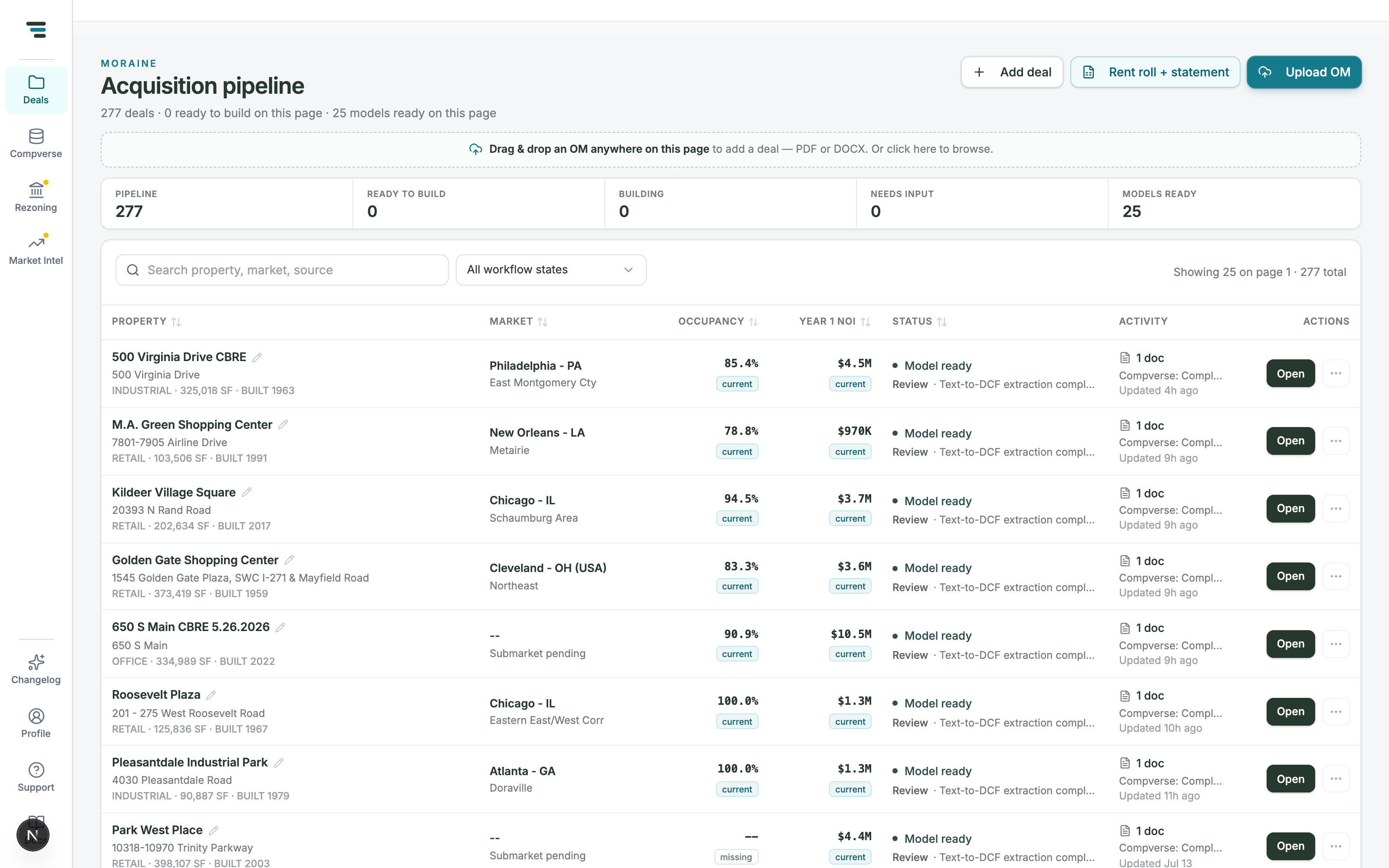
Fig 01The pipeline. The Actions column always shows the next move — Open, Build, or View progress. -
Click Upload OM (top right) and pick your OM PDF in the file dialog. Moraine creates the deal row, attaches the OM, and starts reading it. The row appears with status Intake processing, then Ready to build.
-
Click Build on the row. The build starts and the row switches to Building model with a live progress line. Extraction takes a few minutes; you can leave the page.
-
Open the model. When the row reads Model ready, click Open. The workspace opens on the Intake report — Moraine’s own audit of the build: what it extracted, and three tie-outs against the OM’s stated figures (extracted rent, reconstructed recoveries, NOI).
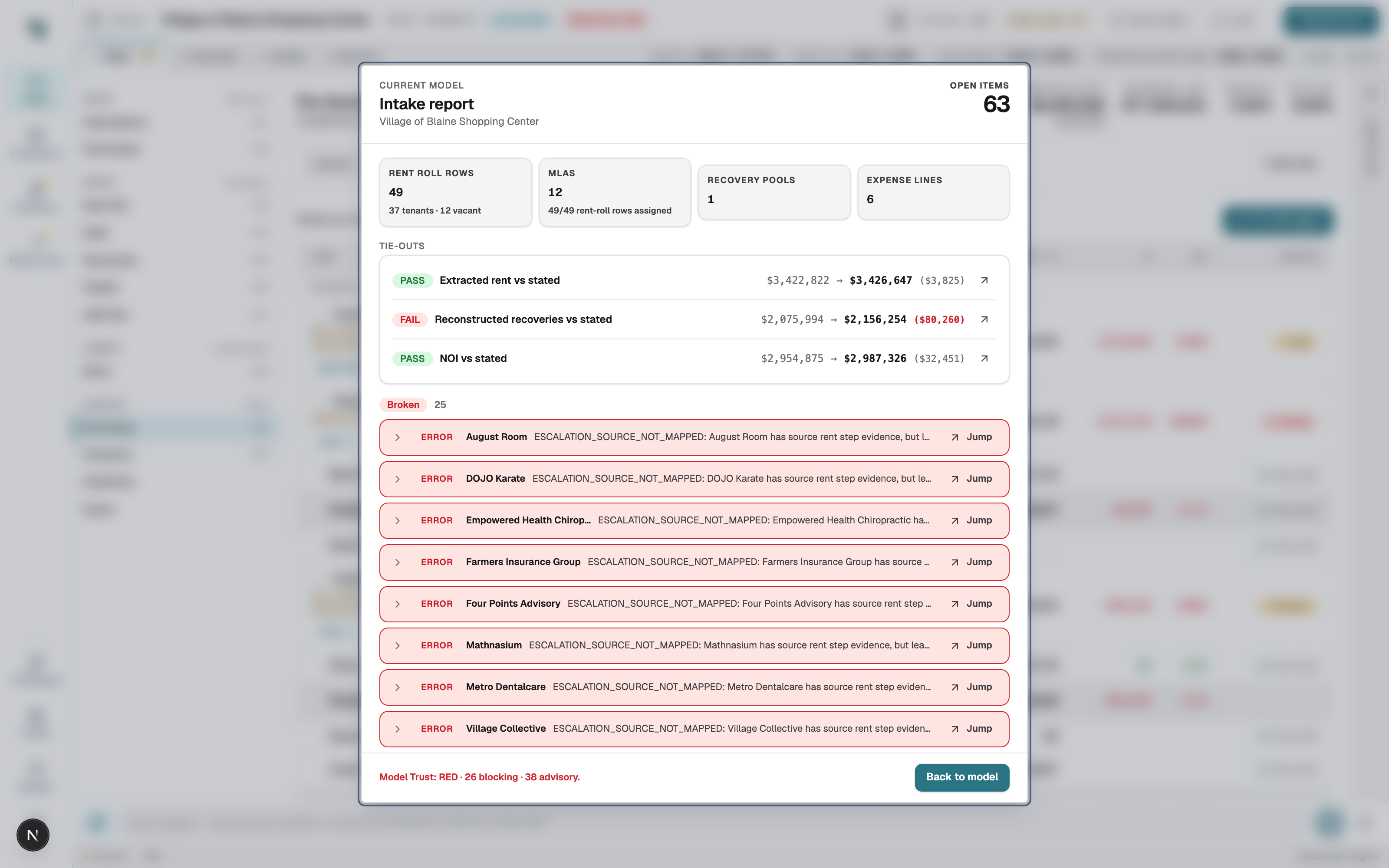
Fig 02A real intake report. PASS/FAIL tie-outs at top; every open item below has a Jump link to the exact input that needs a decision. -
Click Back to model. You land on the pro forma. The left nav is the whole model: Assumptions, Rent Roll, OpEx, and the rest.
-
Change one assumption. Open Assumptions (⌘1), click the Exit Cap Rate value, type a new number, press Enter. The headline IRR and multiple in the scenario bar update immediately — every edit recalculates the full model.
-
Trace one number. Open Pro Forma (⌘9) and click any value. The Inspector opens on the right with the number’s definition, its formula, and what feeds it — for revenue lines, tenant by tenant.
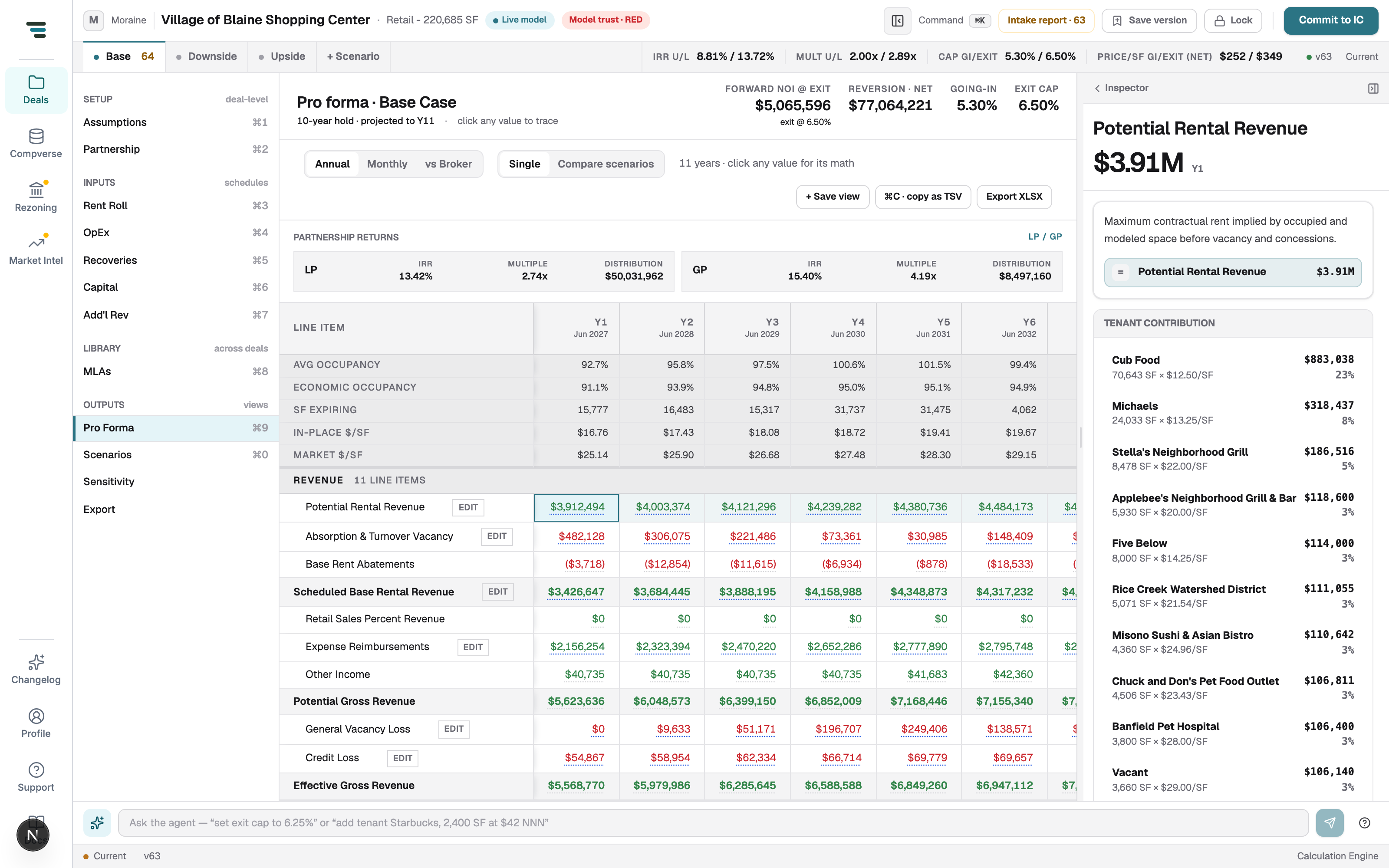
Fig 03Click a value, get its math. Every component in the Inspector is clickable too. -
Export. Open Export in the left nav, click + Add all 29 reports, then Export Workbook. You get an XLSX workbook — the same thing the on-screen preview shows.
That is the whole loop. Where to go deeper:
- The model is wrong somewhere → Inspect & review
- Fix the rent roll → Rent Roll
- No OM, just a rent roll and a T-12 → From a rent roll + financials
- Compare Downside vs Base → Scenario Compare