Outputs & exports
Reports & exports
Compose a report package, preview the exact workbook, and export it as XLSX.
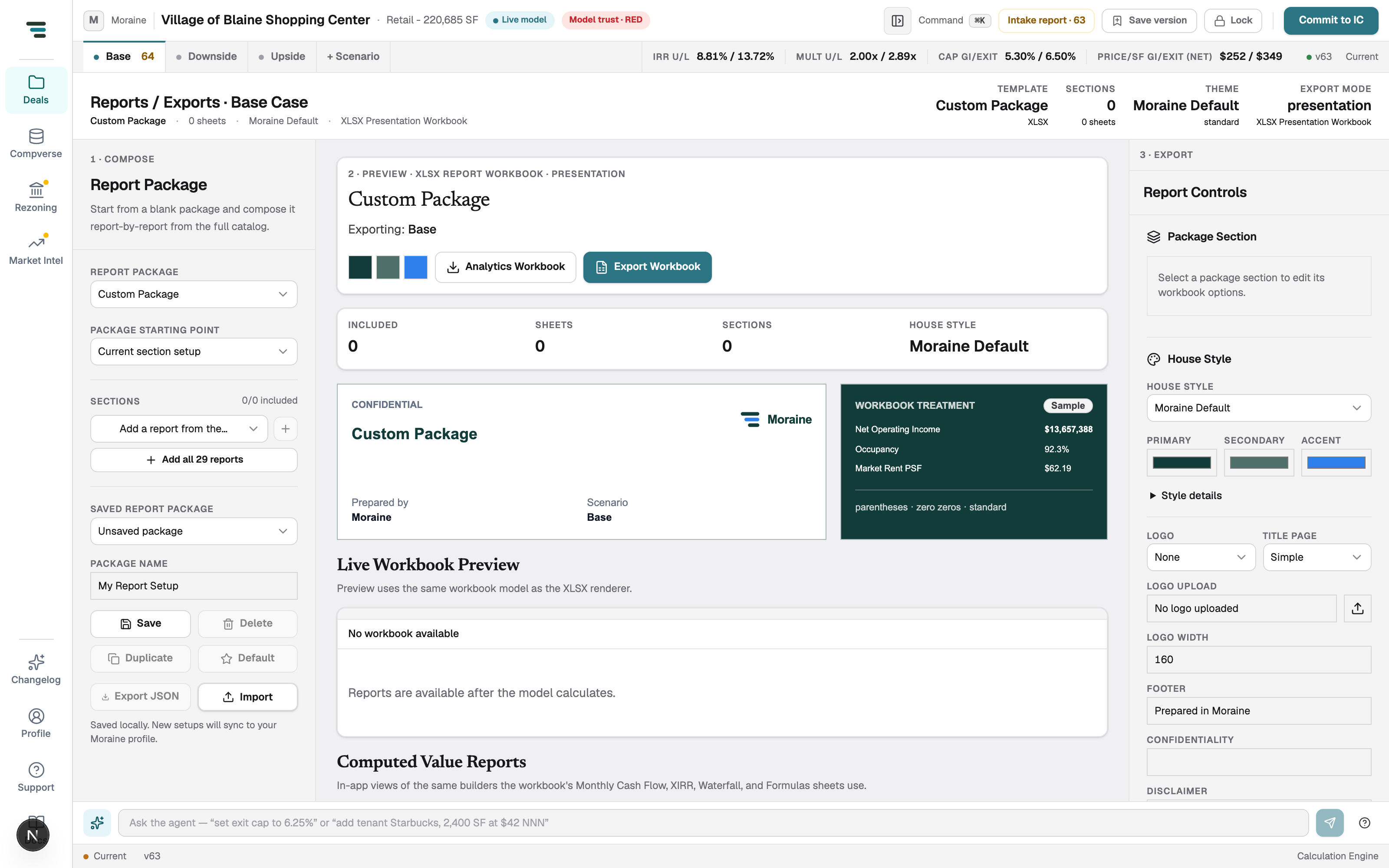
Export (left nav; ⌘K → “export”) builds the deliverable. Three columns, numbered on screen: 1 · Compose the package, 2 · Preview the workbook, 3 · Export controls for styling. Everything exports as XLSX — there is no PDF.
-
Pick a package. Report Package selects a saved or built-in package; Custom Package starts blank.
-
Add sections. Add a report from the catalog adds one at a time — or + Add all 29 reports takes everything and you prune. The full list, with what each contains: Report catalog.
-
Check the preview. The center pane renders the actual workbook — cover page, sheet by sheet. If the preview says Reports are available after the model calculates, wait for the engine to settle.
-
Style it in Report Controls: house style and its palette, logo upload and width, title page, footer, number treatment (the Workbook Treatment card shows the effect).
-
Save the package if you’ll use it again — name it, Save; Default makes it the starting point for future exports. Export JSON / Import moves package definitions between environments.
-
Export. Export Workbook produces the styled presentation XLSX. Analytics Workbook produces the flat, formula-friendly variant for your own models.