Start here
The deal pipeline
Log deals, start builds, and read what each row needs next.
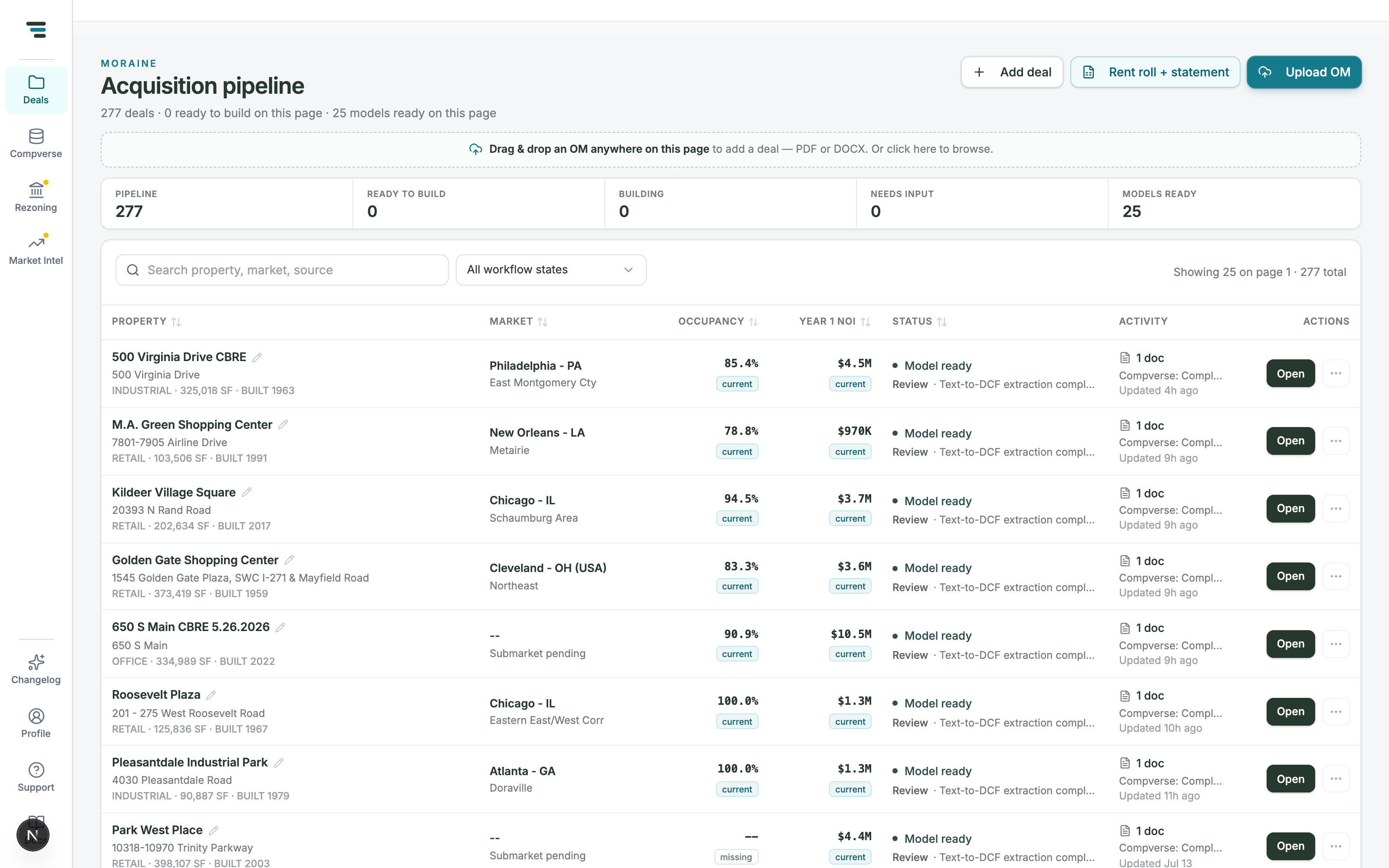
The Acquisition pipeline is the first screen after sign-in: one row per deal, and in the Actions column, the one button that moves that deal forward — Open, Build, or View progress.
Add a deal
Section titled “Add a deal”Three buttons, top right:
- Upload OM — pick an OM PDF in your file picker (it opens immediately; no dialog first). Moraine creates the deal row, attaches the OM, and starts reading it.
- Rent roll + statement — the two-document build in one step. Upload exactly one current rent roll and one operating statement; the property name is optional and inferred from the rent roll filename when blank.
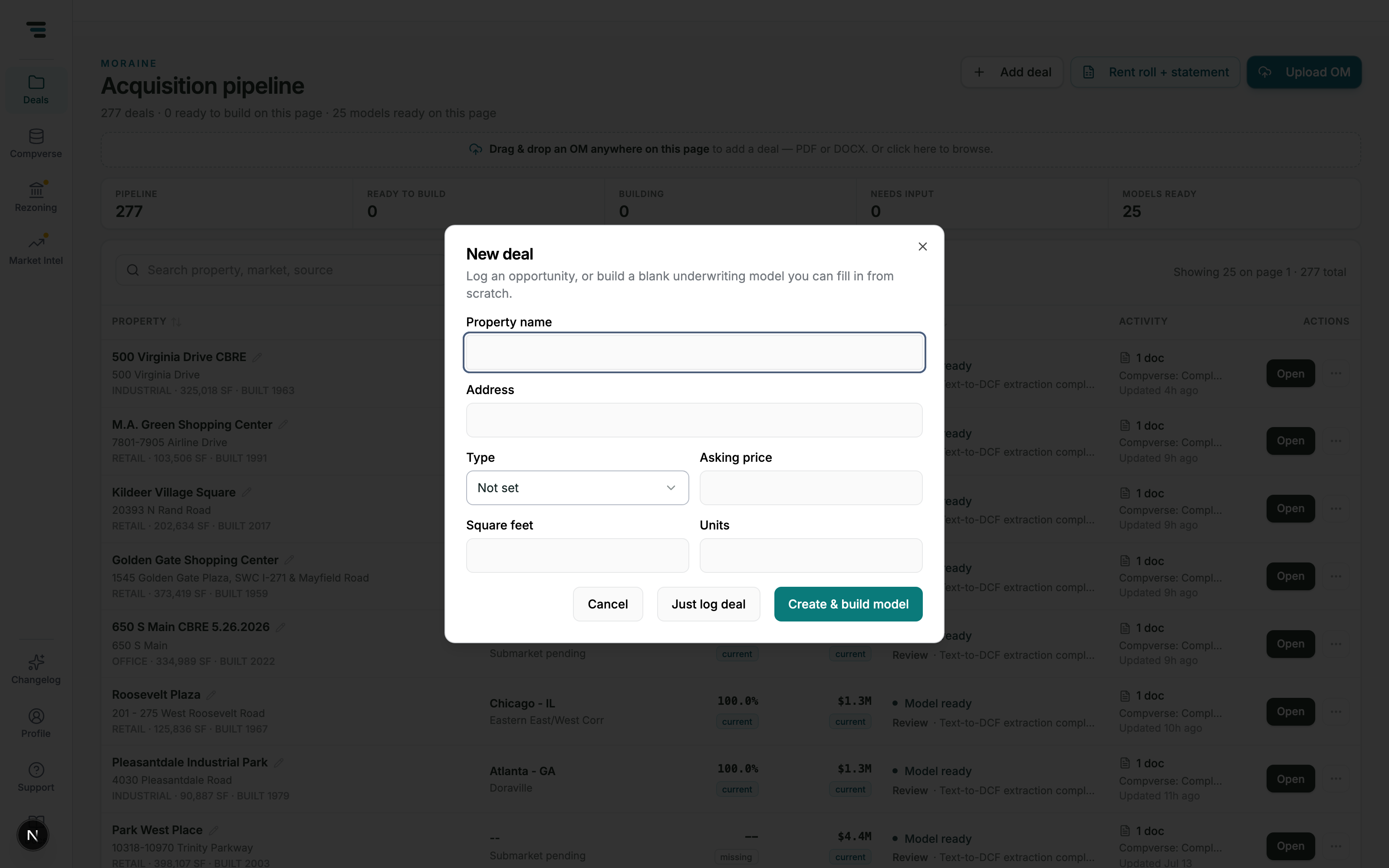
- Add deal — log a deal by hand. Only the property name is required. Just log deal creates the row; Create & build model also opens a blank model you fill in yourself.
Read a row
Section titled “Read a row”Workflow status is the column to trust. The filter above the table lists all seven states:
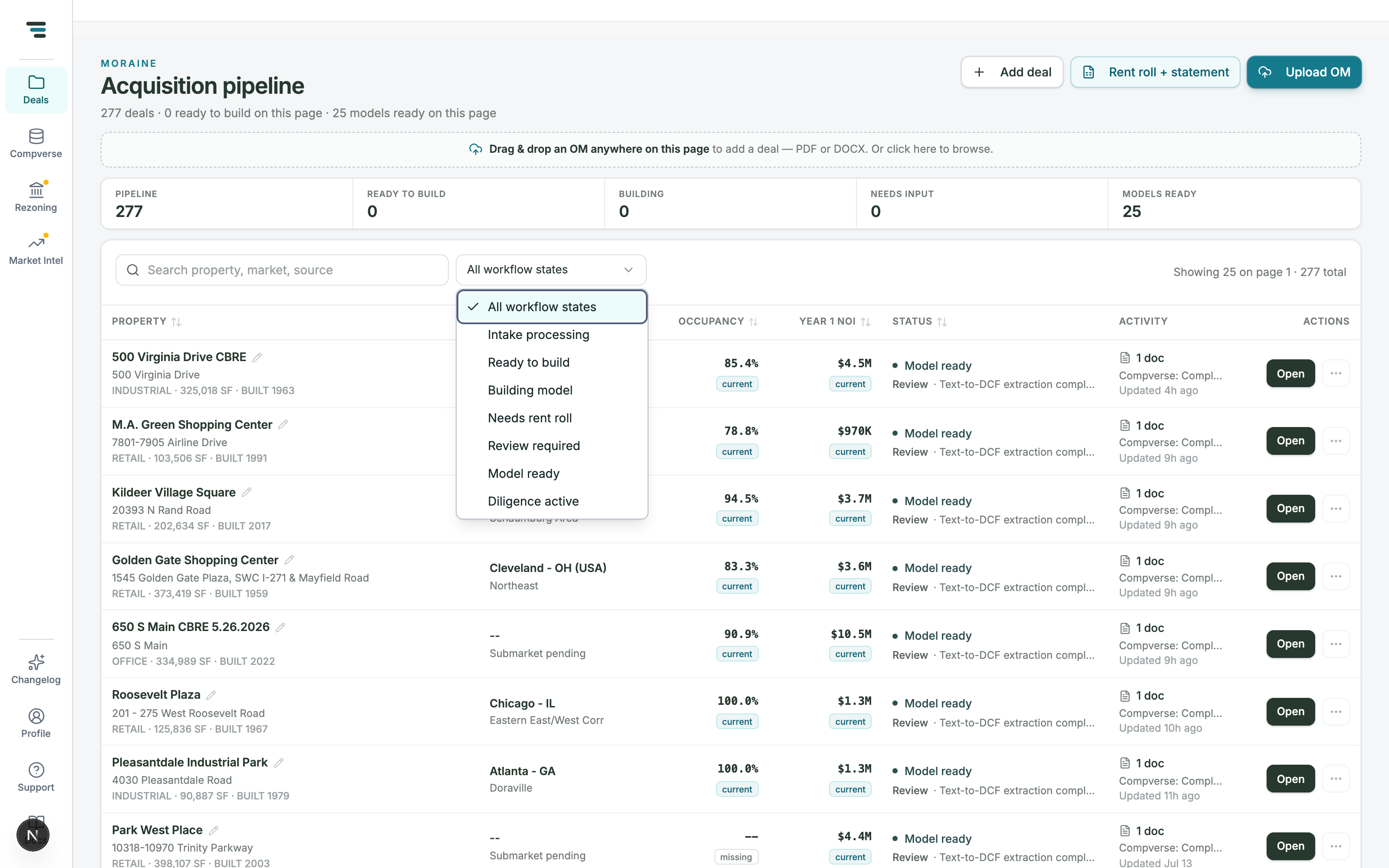
| Status | Meaning | Your move |
|---|---|---|
| Intake processing | Moraine is reading the uploaded OM | Wait — it flips on its own |
| Ready to build | Sources are in place, no model yet | Click Build |
| Building model | Extraction is running, progress shown on the row | Wait or View progress |
| Needs rent roll | A build needs a current rent roll | Add one from the row |
| Review required | Model built; open items want your judgment | Open, then work the intake report |
| Model ready | Built and calculating | Open |
| Diligence active | Document analysis is running on the deal | Open the deal’s Documents |
A Model ready row also shows its open-item counts (e.g. 4 blockers · 4 advisories) so you know how much review is waiting before you open it.
The row menu
Section titled “The row menu”The ⋯ menu on each row:
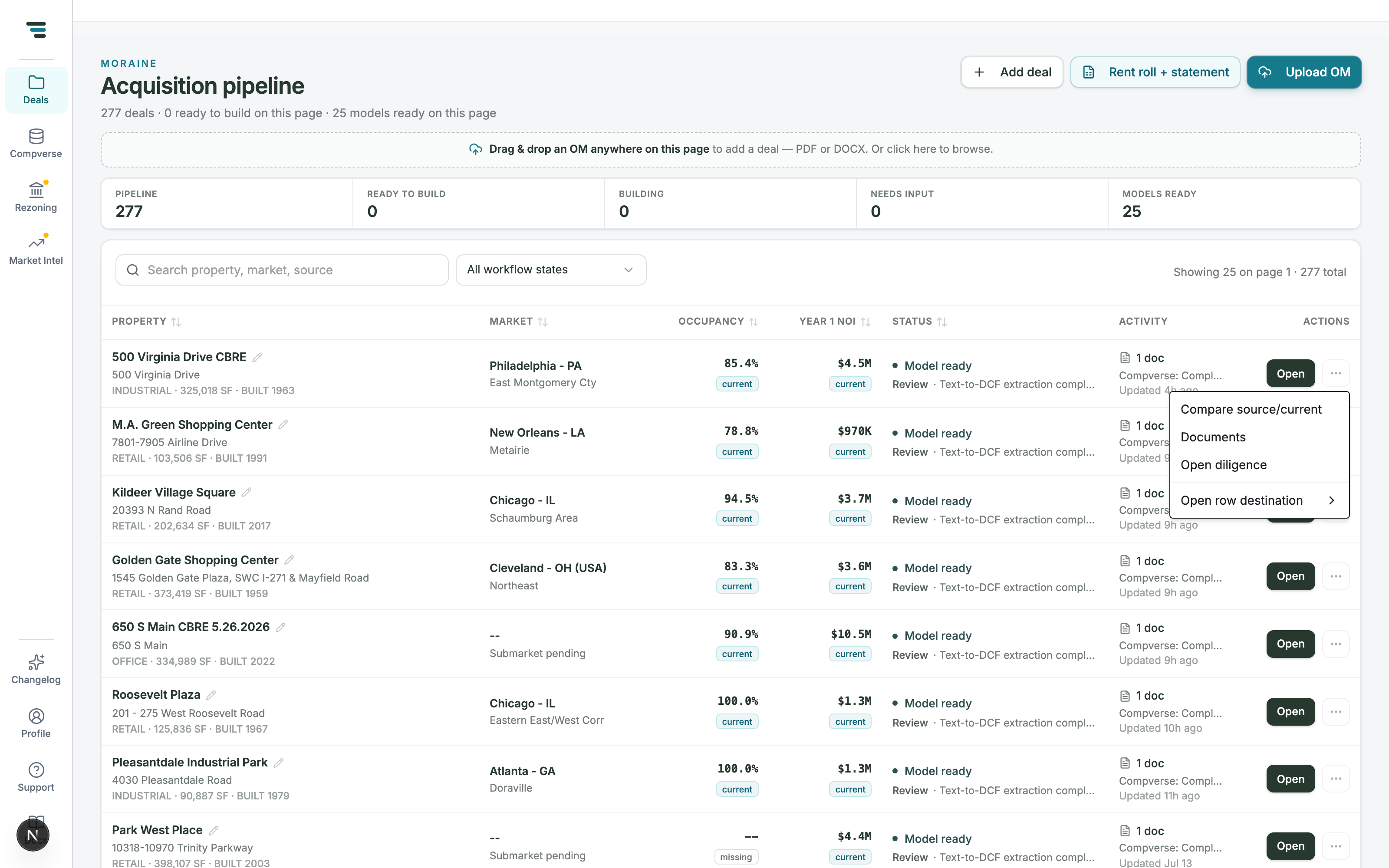
- Compare source/current — the extracted figures against the current model, for a quick “did we drift” check.
- Documents — the deal’s document manager. See Manage documents.
- Open diligence — the deal’s due-diligence checklist and findings.
- Open row destination — wherever the row’s main action would take you.